Machines
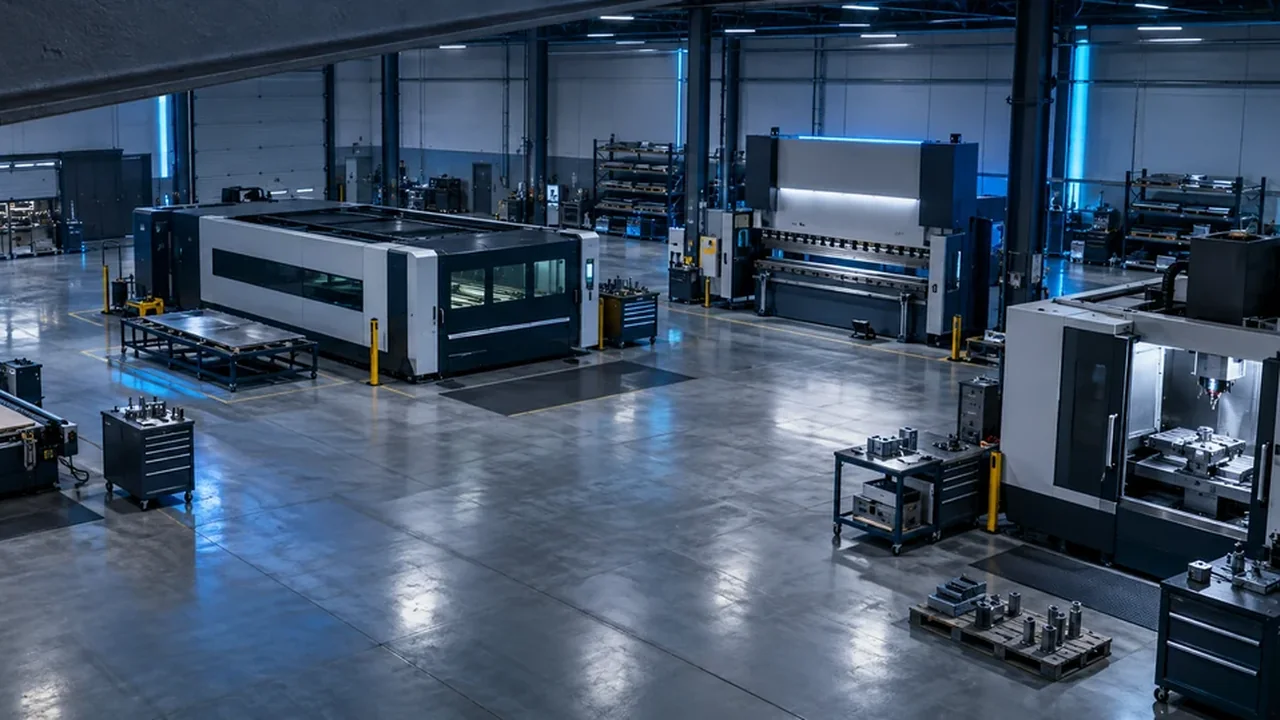
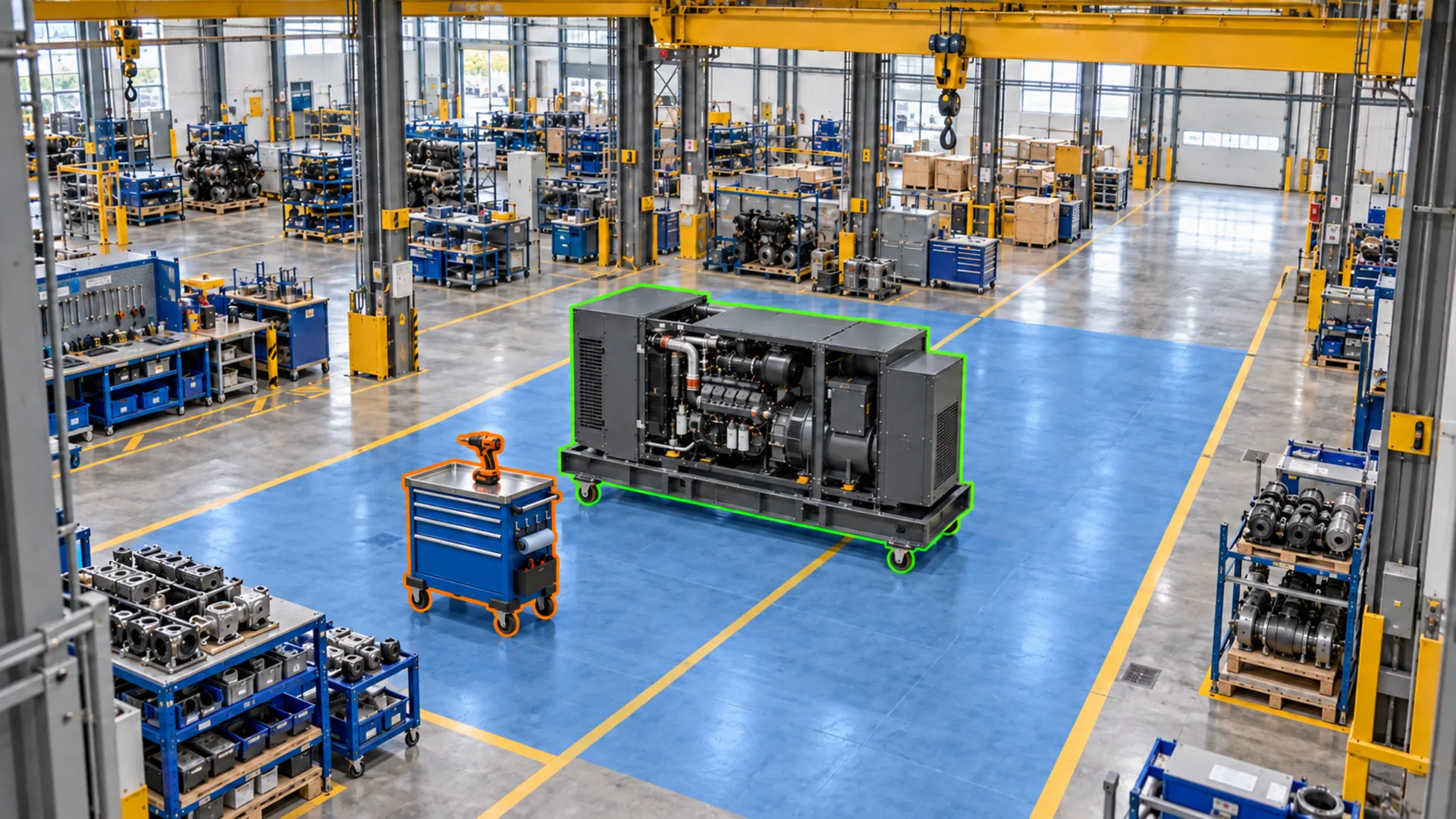
Every change of state, recorded against the machine record as it happens.
- On and Off
- In Use
- Under Repair
- Your custom states
Vision AI
Connect cameras in minutes, train Vision AI on your own floor, and see machine states, production progress, tools and work-area activity flow straight into Offsight, ready to act on.
The setup, step by step
Five steps, most of them measured in minutes. Click through the flow, screen by screen, in the Offsight console and mobile apps, or press play.
Step 1 · Internet of Things
Connect cameras · screen 1 of 3
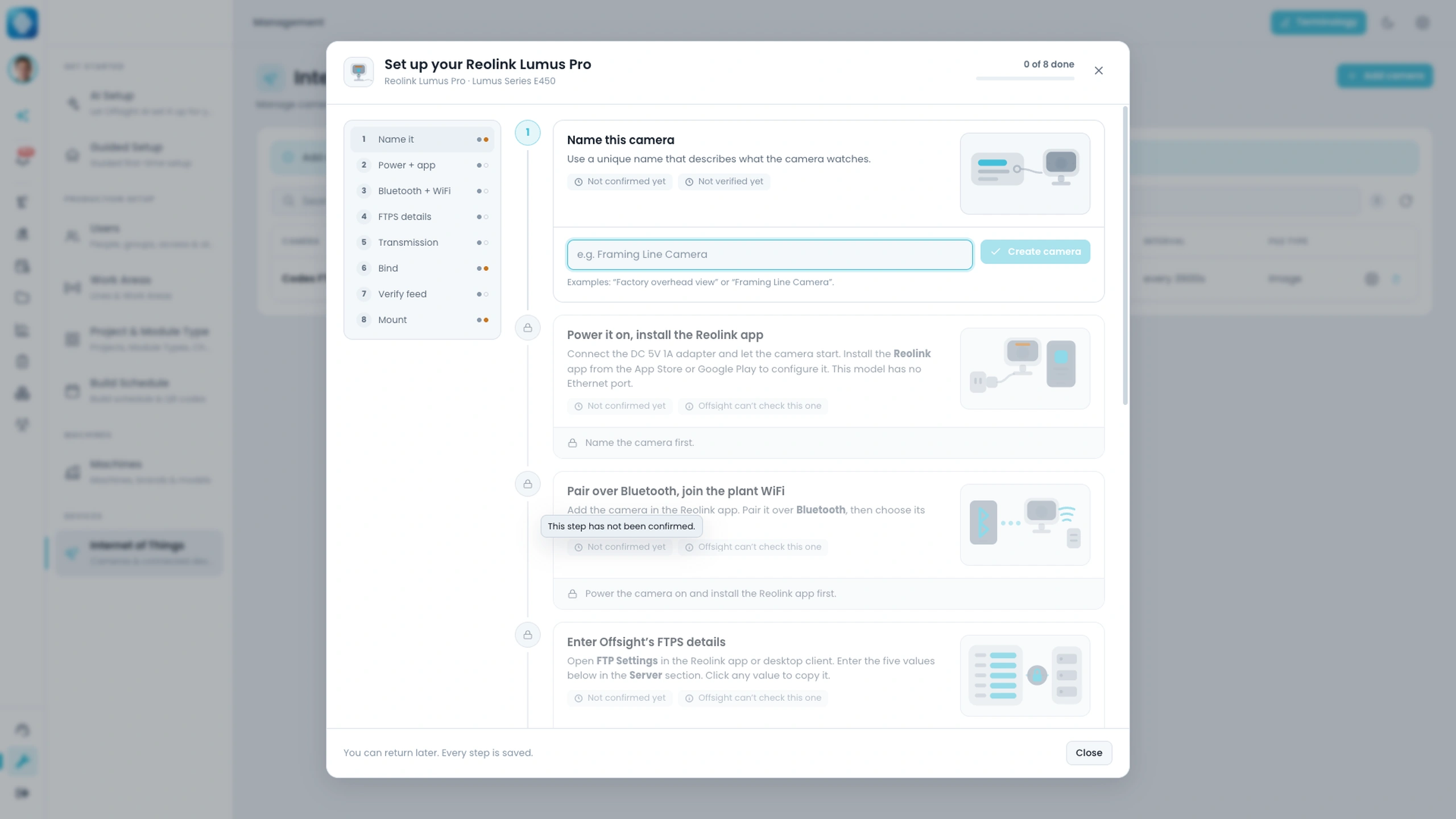
Internet of Things in the Offsight console, with a camera setup open.
Choose Add Device, pick the camera, and Offsight opens a guided setup for that exact model.
Power the camera, pair it from a phone, join the plant Wi-Fi and paste Offsight’s upload details into the Reolink app. Frames then arrive on their own.
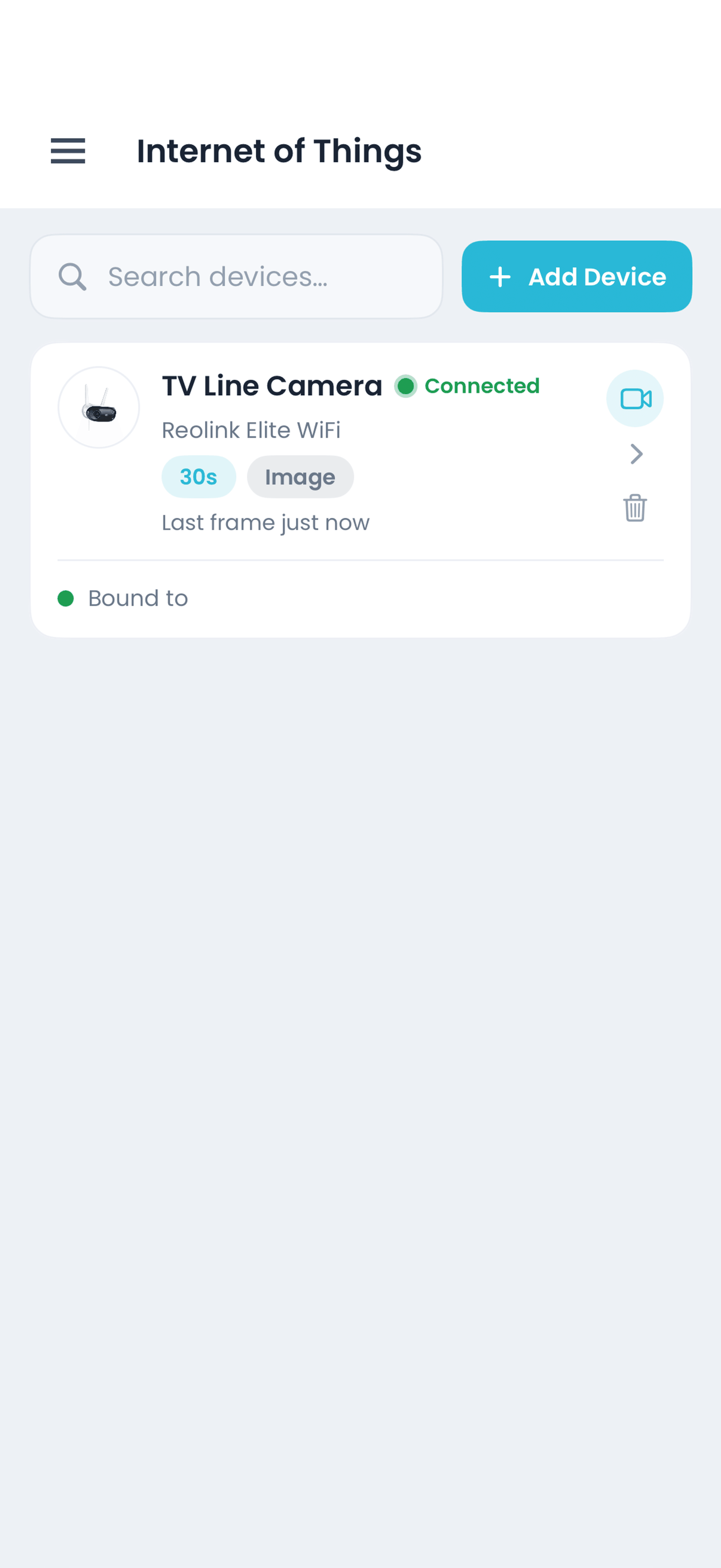
A connected camera on iPhone, sending a still every 30 seconds.
Minutes
To connect a camera in Internet of Things, every setup step saved as you go
3 frames
Marked per camera to set up a work area for training
12 + 12
Marked On and Off frames to train a machine’s states
3 apps
Console, iOS and Android, from camera setup to the live feed
What it understands
One camera sees all of it. Vision AI turns each into data Offsight can act on.
Every change of state, recorded against the machine record as it happens.
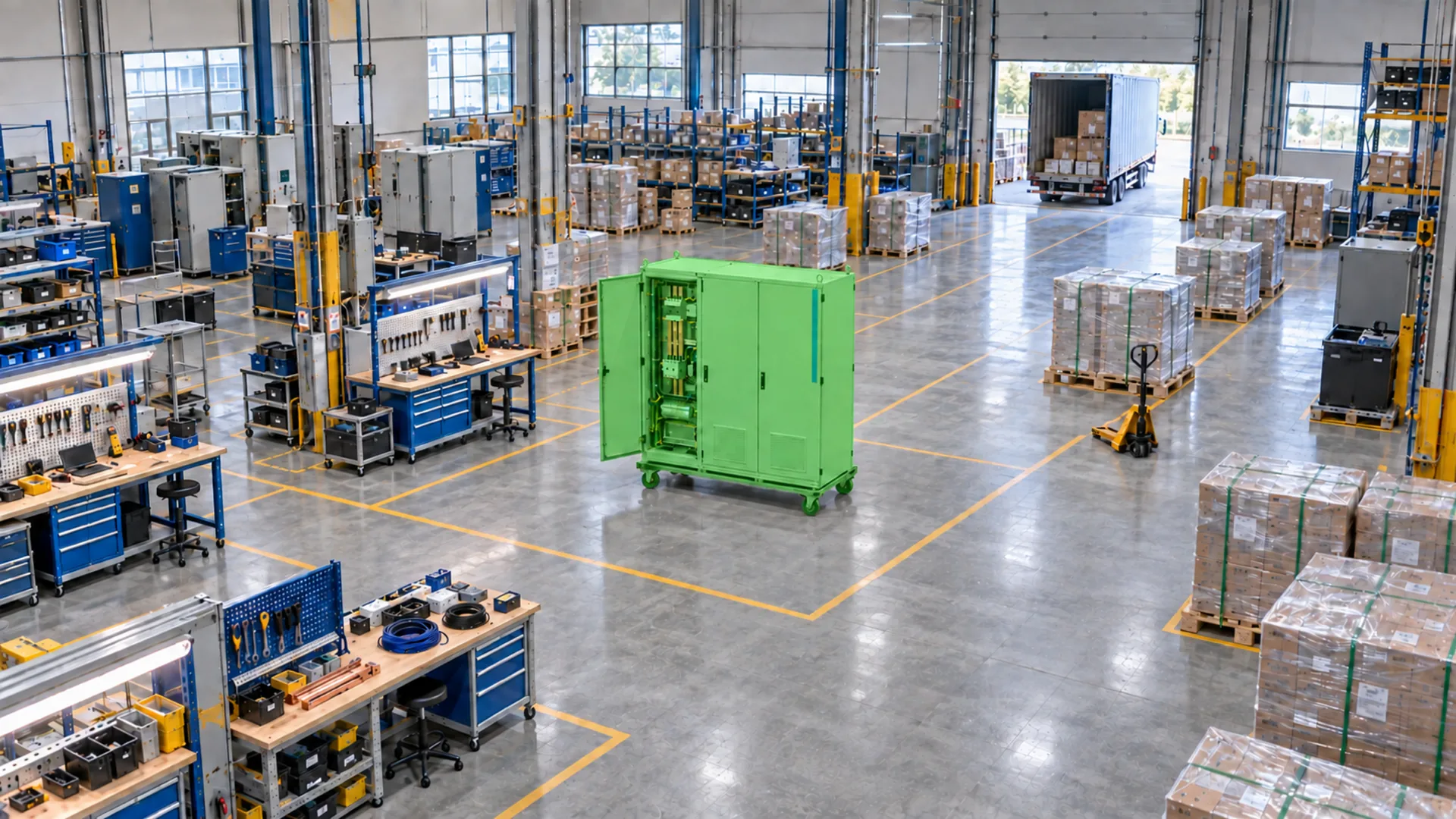
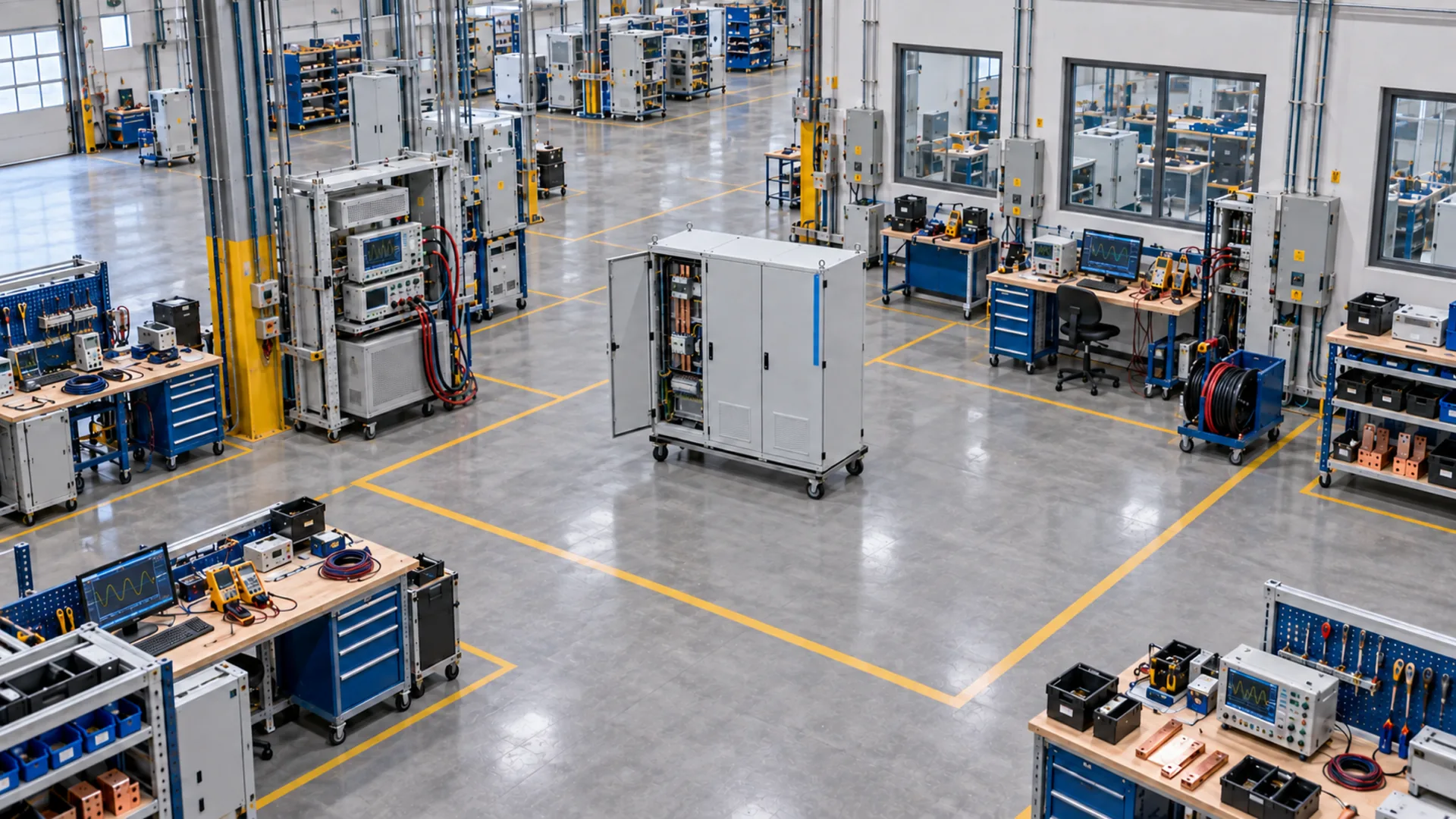
The unit on the floor and the work area it is in, so progress shows up without a scan.
Draw the area once. Vision AI reads the activity inside it, frame after frame.
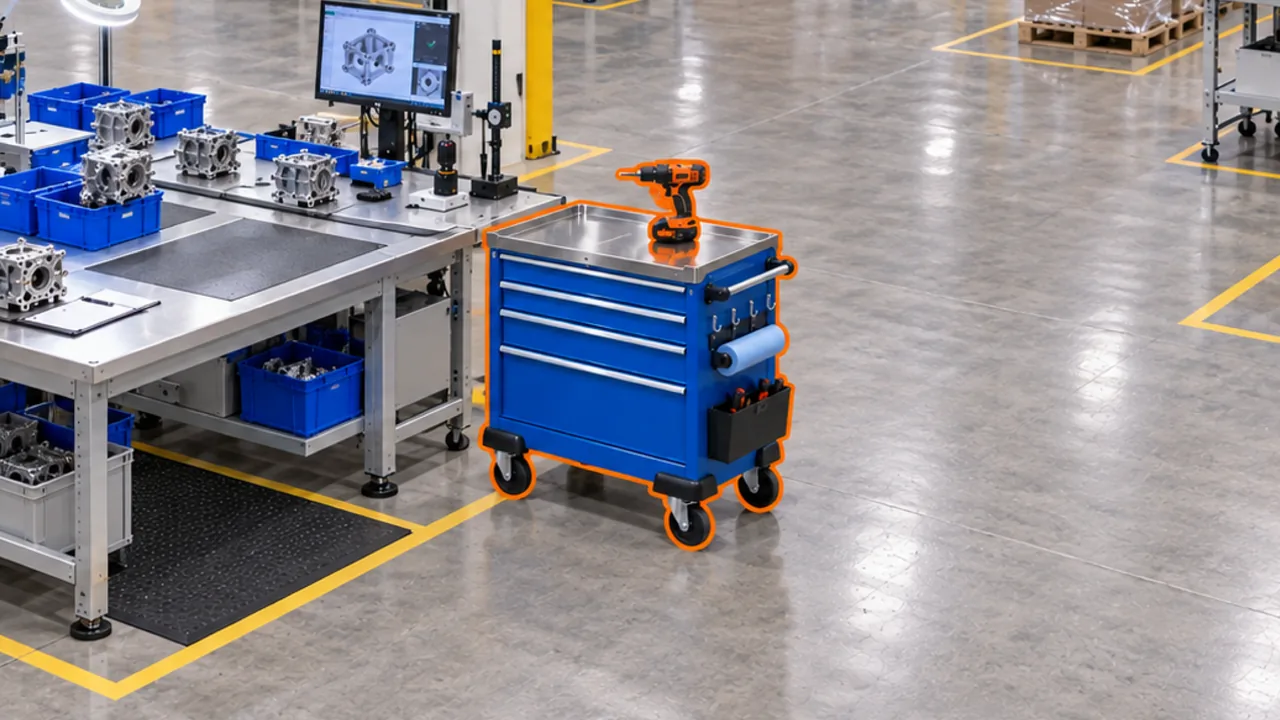
Carts, welders, grinders and portable equipment, picked out in every work area’s frames.
See it the way Vision AI does
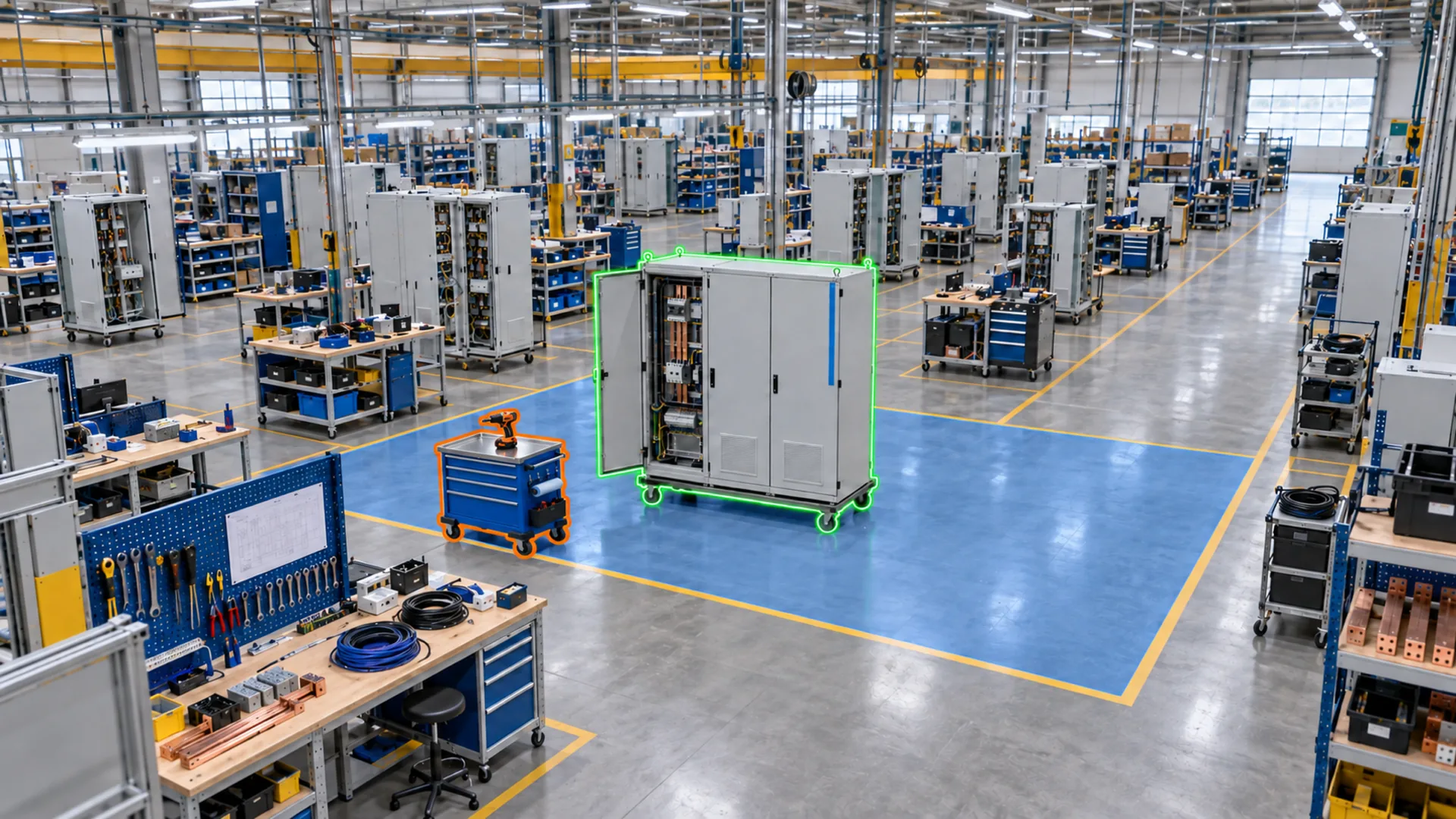
Drag across the frame. On the left, the raw still. On the right, the unit in progress that Vision AI picks out of it.
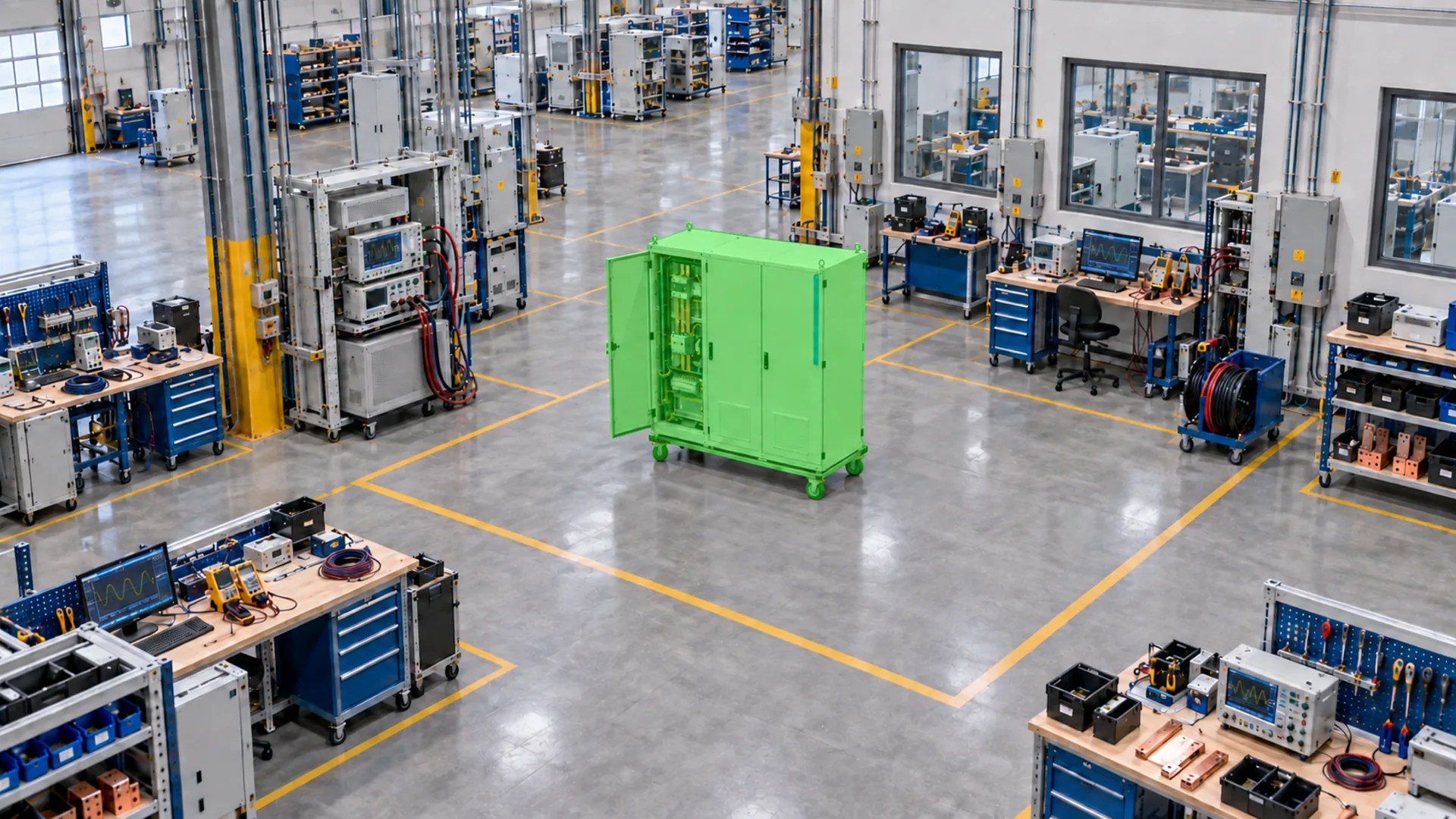
Machine states
Production progress and equipment
Each work area’s camera records what is in it, frame after frame, so you can see when a unit or a cart was in each area.
Three work areas, three cameras. Each frame shows which area the unit is in.
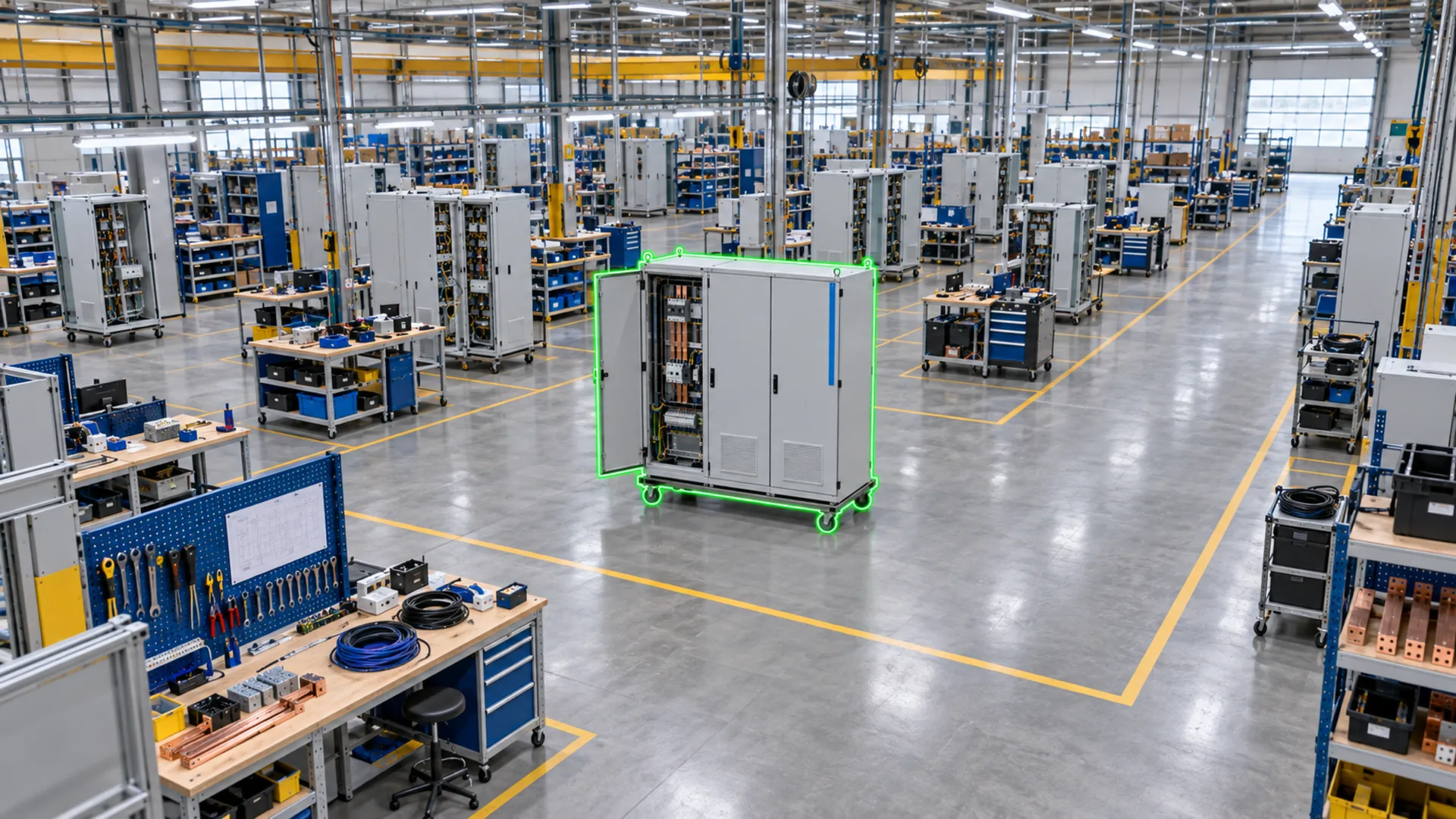
Wiring Assembly7:42 AM
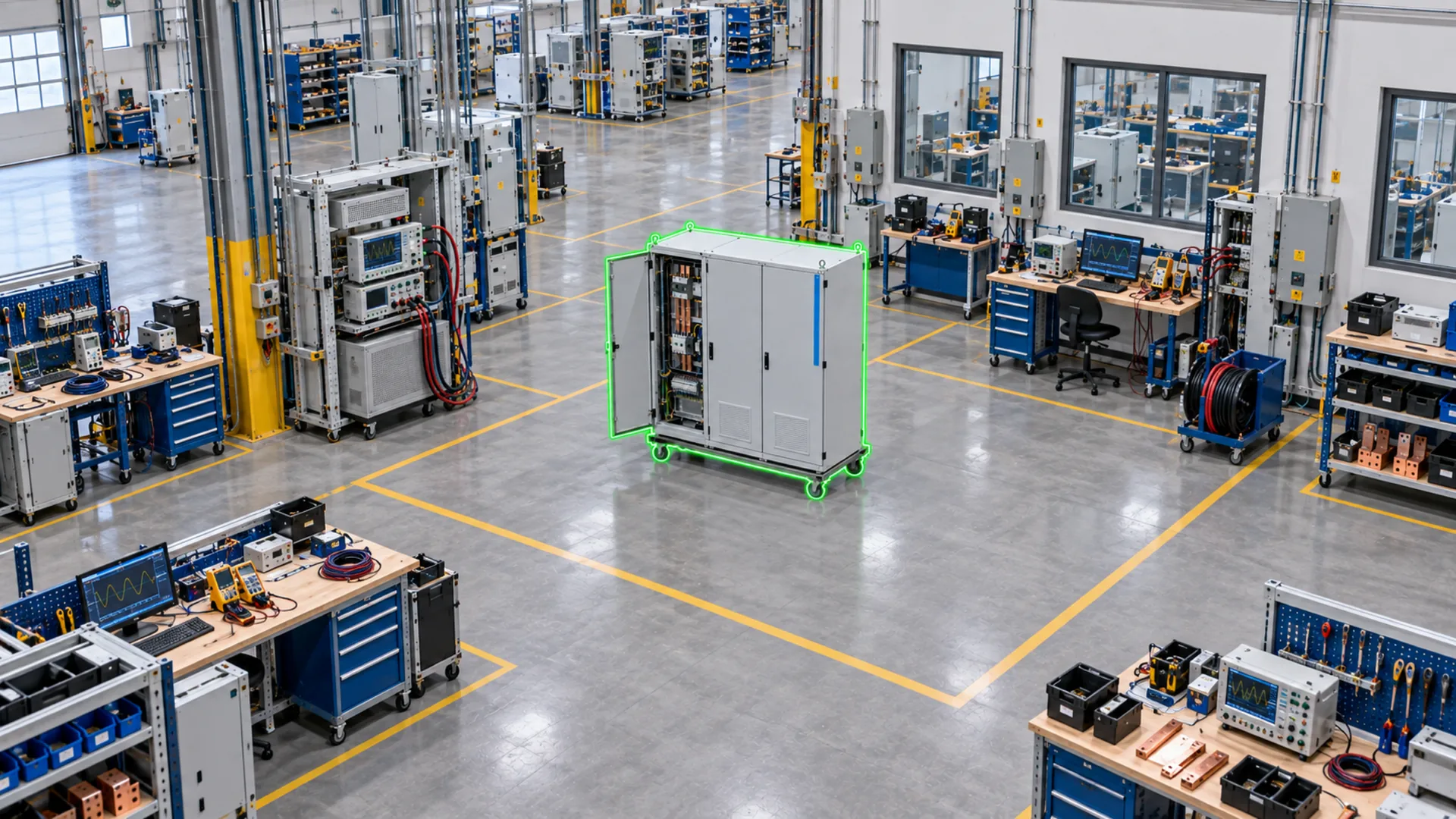
Functional Testing11:18 AM
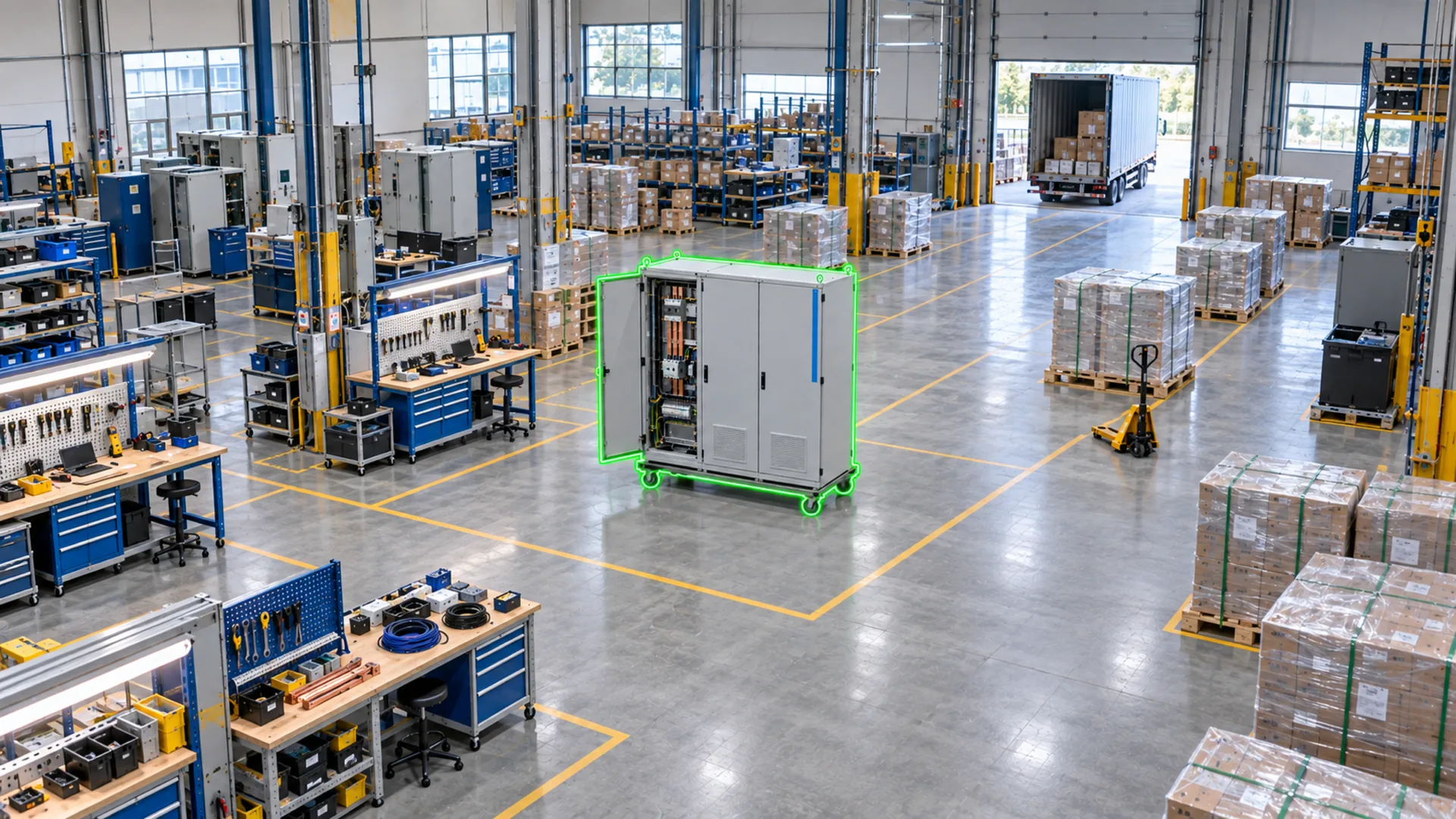
Final Quality2:36 PM
See which work area the shared cart is in, without searching the building.
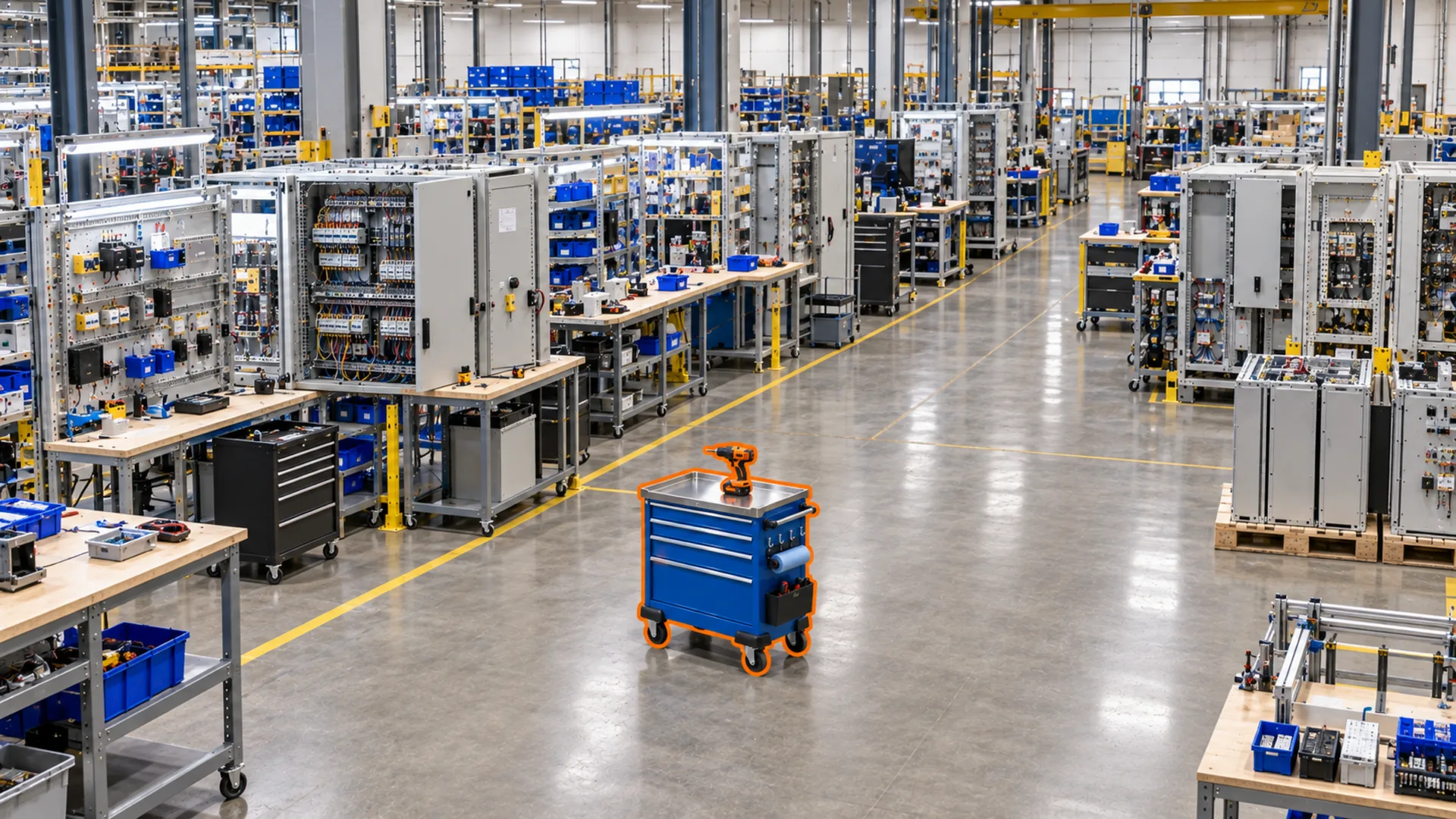
Electrical Assembly8:05 AM
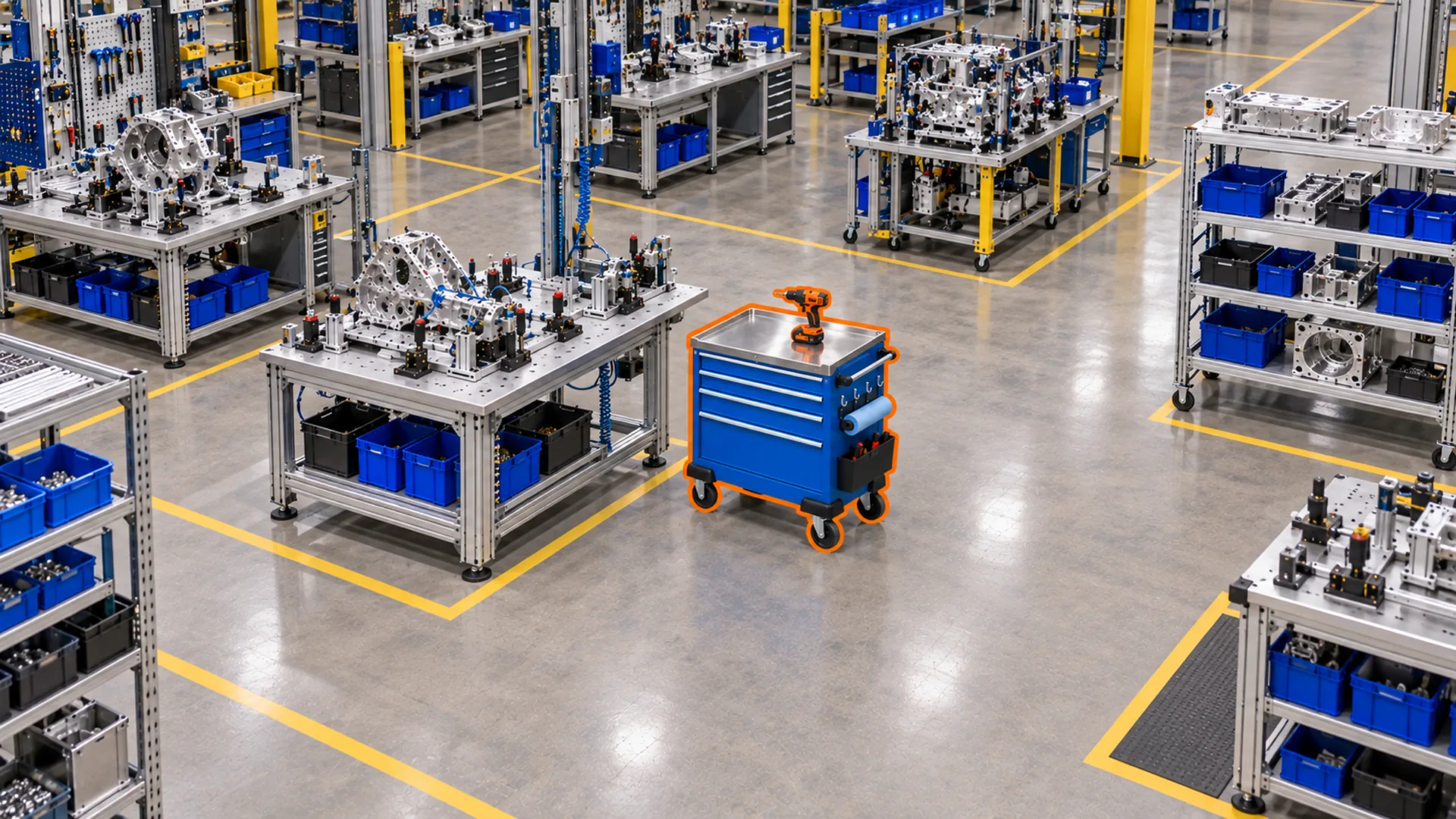
Mechanical Assembly10:52 AM
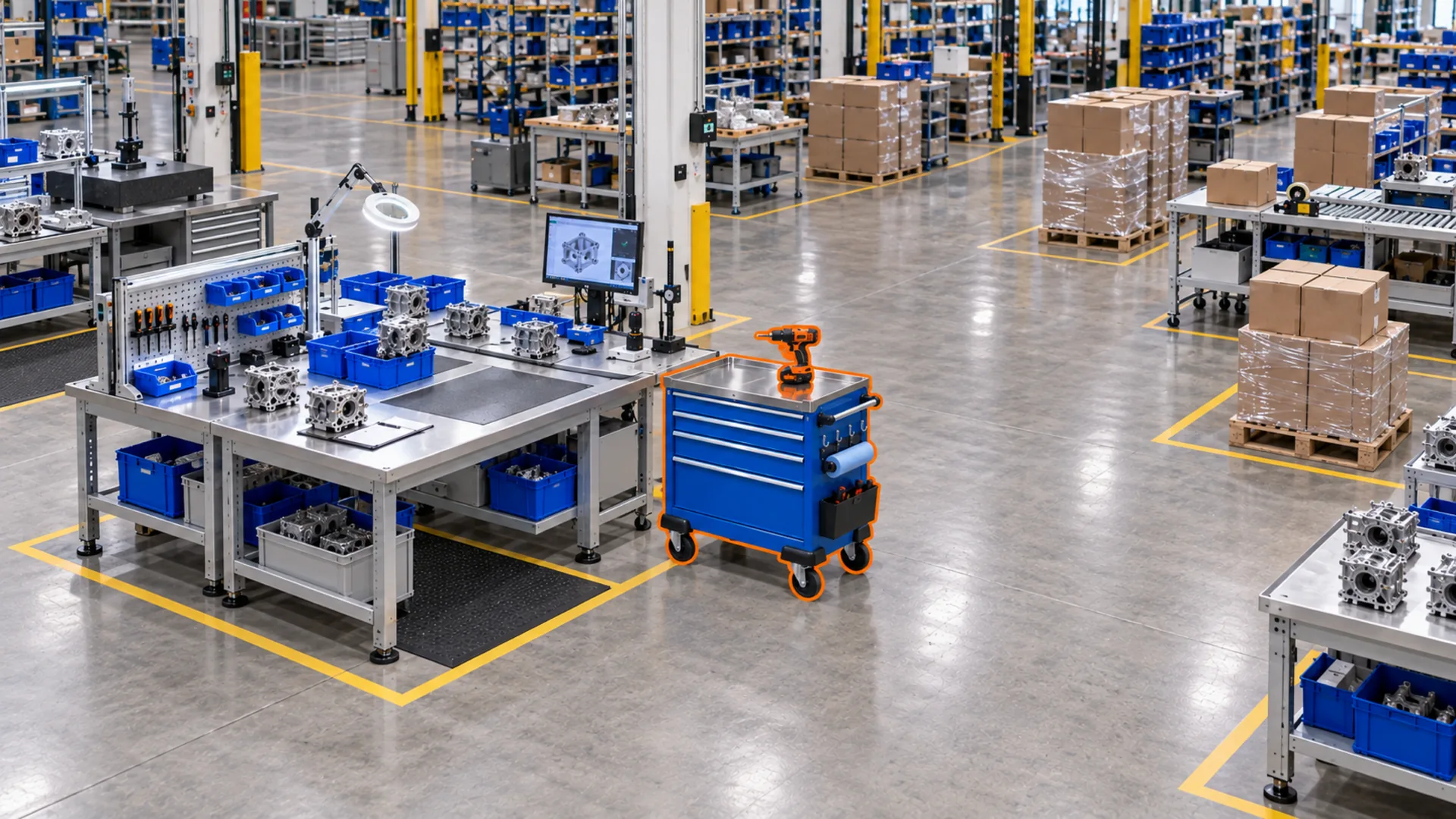
Final Inspection3:14 PM
Instantly in Offsight
Vision AI is not another screen to watch. Its signals land in the same Offsight system that runs production, quality, materials and labor.
A machine goes down, a unit stalls, a work area goes quiet. The right person hears about it while it still matters, on the console or the phone.
Supervisors re-sequence work, move people and send technicians from live floor data instead of a walk-around.
Uptime, time in each work area and throughput come from what the cameras saw, not from end-of-shift data entry.
Deployment
No servers to rack, no GPUs to buy and no machine-learning pipeline to maintain.
Supported Reolink cameras mount in minutes. A dual-lens model covers a 180° view, so one mount can watch a whole bay.
Cameras upload stills to Offsight over encrypted FTPS. Offsight trains the models and runs them for you.
Each model learns from your own frames and the names your team already uses, so it knows your machines, your products and your work areas.
Set up, mark up, review and act from the console, the iPhone or the Android app, with the same data everywhere.
Where to buy?
Vision AI works with the two Reolink cameras Offsight sets up in Internet of Things. Pick one up from Reolink, Amazon or Walmart, and it is watching your floor the same day.



Questions
Minutes. Internet of Things walks you through naming the camera, powering it, pairing it over Bluetooth, joining the plant Wi-Fi, entering Offsight’s FTPS upload details, binding it and verifying the first frame. Every step is saved, so you can stop and pick up later.
No. Your team marks up a handful of real frames (three per camera for a work area, twelve each for a machine’s On and Off states) and presses Start training. Offsight trains the model on its own GPUs and deploys it for you.
No. Cameras send stills through the shift. That keeps the load on the plant network light and gives every moment a clean, timestamped frame you can scrub back to.
Machine states such as On, Off, In Use and Under Repair, plus custom states you define; the products in each work area; tools and portable equipment; and activity inside the work areas you draw.
Camera setup, the live feed, markup, training and review all work in the Offsight console and in the iOS and Android apps.
No. The only hardware on site is the cameras. Offsight trains and runs the models, and the results land directly in your Offsight account.
Factory camera scenes on this page are illustrations, including the frames shown inside the camera-feed and markup screens. The screens themselves are from the Offsight console and iPhone app.
Bring a camera angle, a floor plan or the machine you most want to watch. We will show you the setup, the live feed and the model, end to end.